This article describe step-by-step on how to create an email signature for Acart within Outlook.
- Find an email that contains a signature that you want to use as a basis for your signature. We need this email because we want to copy that signature and just change couple of information. That way, the process will be faster.
- Create a new email. This new email is a place where we will be doing the editing of the new signature.
- Copy and paste the signature from the email in step 1. Generally, an email signature should contain the dash-dash-empty (– ) line. Historically, this line has special meaning for email client. That is where it detects the start of the signature, so if it needs to replace or strip it, it knows where to find it. Start to copy the signature one line above the dash line.
- After pasting the signature, you need to change several information:
- Name & position
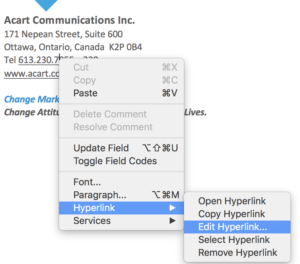
- Extension number. To make the telephone number clickable on device that support it, right click the phone number to add a hyperlink (or edit an existing one if it is already there.
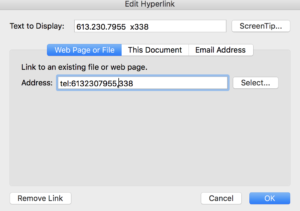
On the hyperlink page, they are two numbers that you may need to change:- Text to Display. Make sure that it displays the correct extension
- The link to address. It needs to be tel:6132307955,338 (the number after the comma is the extension number). Adding comma makes the iOS to pause before entering the extension, and on Android, to display the extension number for user to automatically dial when prompted for extension number.
- After those changes, copy your signature, again start from the line above the dash line.
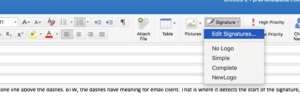
- Click the Signature icon from the email editor and select Edit Signatures…
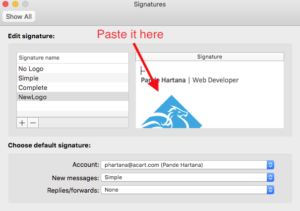
- Paste your new signature into an existing entry, or you can create a new signature entry.
- That’s it.
Technical specifications:
- Main color: #737272
- Blue color: #00A7E1
- Font name: Calibri
- Font size: 11pt, except for Acart Communication Inc., which is 13pt.
- Logo size: 2.54cm x 2.54cm
- Logo and www.acart.com are linked to https://acart.com/
Signature for Mobile
On mobile email app, embedded image within signature cannot be displayed correctly. To use the image in this case, it needs to be loaded from a server.
Use this link to generate the email signature for mobile, where the images will be loaded from server instead of embedded.
https://distributes.acart.com/acart/acart-signature/
Save to PDF